
Nutrition Facts Label Generator for Small Food Businesses
Build a recipe from USDA FoodData Central ingredients and KitchenSync calculates its nutrition and lays it out as a Nutrition Facts label in the FDA format. Every plan includes unlimited labels with no per-label fees and no branding on your labels.
How it works
- Add your ingredients. Search USDA FoodData Central (Foundation, SR Legacy, Survey/FNDDS and Branded foods) or create a custom ingredient. Enter amounts by weight (g, kg, oz, lb) or by volume (tsp, tbsp, cup, fl oz, pint, quart, gallon, ml, liter).
- KitchenSync totals the nutrition. Nutrients are summed across every ingredient, weighted by the amount you use. Volume amounts are converted to weight with USDA density data, or with a custom density you set for that ingredient.
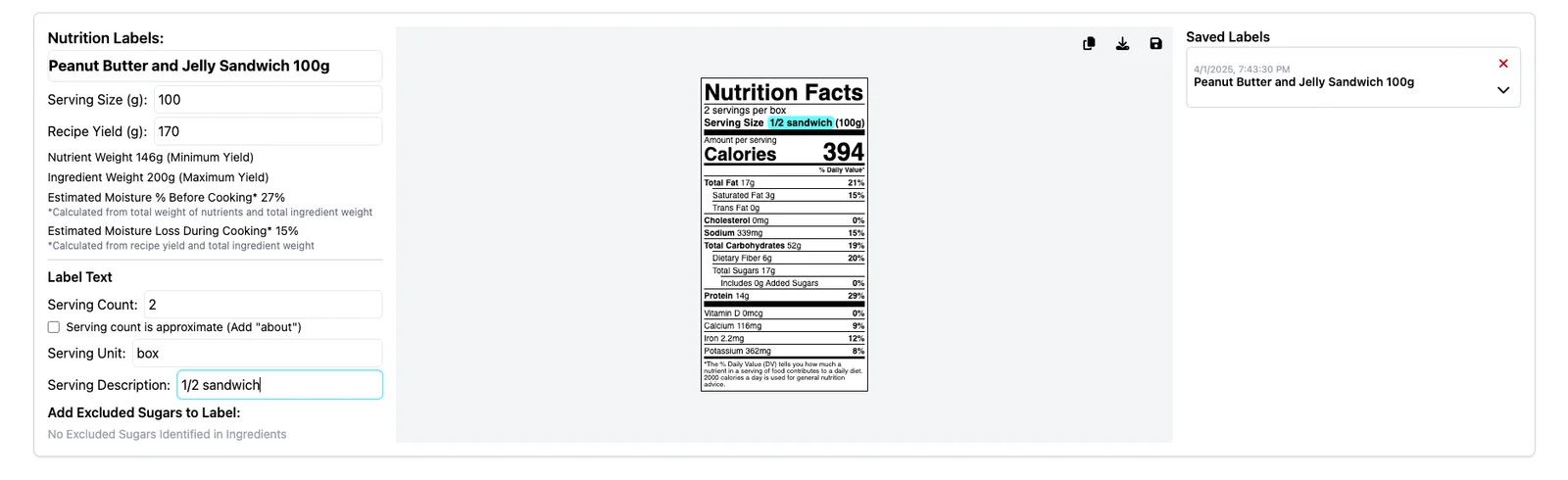
- Set your serving. Enter the serving size, servings per container and a serving description, and mark the servings as approximate when you need "about" in front of the count.
- Export the label. Download it as a PNG or copy it to your clipboard, then place it in your packaging artwork.
What goes on the label
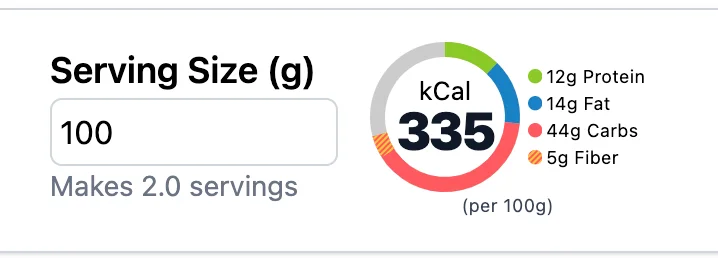
The label follows the FDA Nutrition Facts format: serving size and servings per container, calories, the macronutrients with % Daily Value, and vitamins and minerals. A macro pie chart on the recipe shows the protein, fat and carbohydrate split while you work, so you can see the effect of a substitution before you print anything.
Sugar alcohols and similar sweeteners get their own handling. KitchenSync flags likely candidates as excluded sugars, and you choose which ones appear as a separate line on the label instead of counting toward sugars. See excluded sugars in the docs.
Label presets for every package size
If you sell the same product in more than one size, or sell a whole range in the same pouch, save each serving configuration as a label preset: serving size, servings per container, description and the approximate flag. Presets are reusable across recipes, and you can generate labels for several presets at once instead of re-entering the same numbers for each product. Generated labels are kept in a saved labels list on the recipe.
Labels that keep up with your recipe
Because the label is calculated from the recipe, it changes when the recipe does. Swap an ingredient, adjust an amount or save a new recipe version, and the label and the cost per serving update together. Use recipe versions to try a variation without losing the original, and mark one version as primary.
Accuracy is in your hands
Values come from the USDA entry each ingredient is linked to, so the label is only as accurate as those matches. You can review and change any match, and you should check that the entry you pick reflects the product you actually buy. See matching ingredients to nutrition data. Where accuracy matters for compliance, consider laboratory analysis or a review by a qualified professional.
What it costs
The Free plan covers one recipe with no credit card. Starter is $14.99/month for 25 recipes and Growth is $29.99/month for 100 recipes. Every plan includes unlimited nutrition labels and PNG exports. Compare plans on the pricing page.
Frequently asked questions
Are KitchenSync nutrition labels FDA-compliant?
KitchenSync lays labels out in the FDA Nutrition Facts format with serving size, calories, macronutrients with % Daily Value, and vitamins and minerals. The values are calculated from the USDA entries your ingredients are linked to, so check those matches before you print.
Is there a fee per label?
No. Every plan, including Free, includes unlimited nutrition labels and PNG exports with no per-label fees and no KitchenSync branding on the label.
Can I make labels for different package sizes?
Yes. Save each serving configuration as a label preset and reuse it across recipes, or generate labels for several presets at once.
Can I enter ingredients in cups and tablespoons?
Yes. Volume amounts are converted to weight using USDA density data, or a custom density you set for an ingredient, before nutrition is calculated.
Related documentation
Try KitchenSync free
Free forever for your first recipe. No credit card required.
Sign Up Free →Need more recipes? See KitchenSync plans and pricing.